Have you ever opened a game on your phone and found it squeezed into a tiny strip in the middle of the screen? Or played on a laptop where the game seemed oddly tall and narrow? The reason is screen orientation. Every game is designed with a particular shape in mind, and matching your device to that shape can make a remarkable difference to how a game looks and feels. This article explains the basics and shows you how to get the best view every time.
Portrait and landscape in plain words
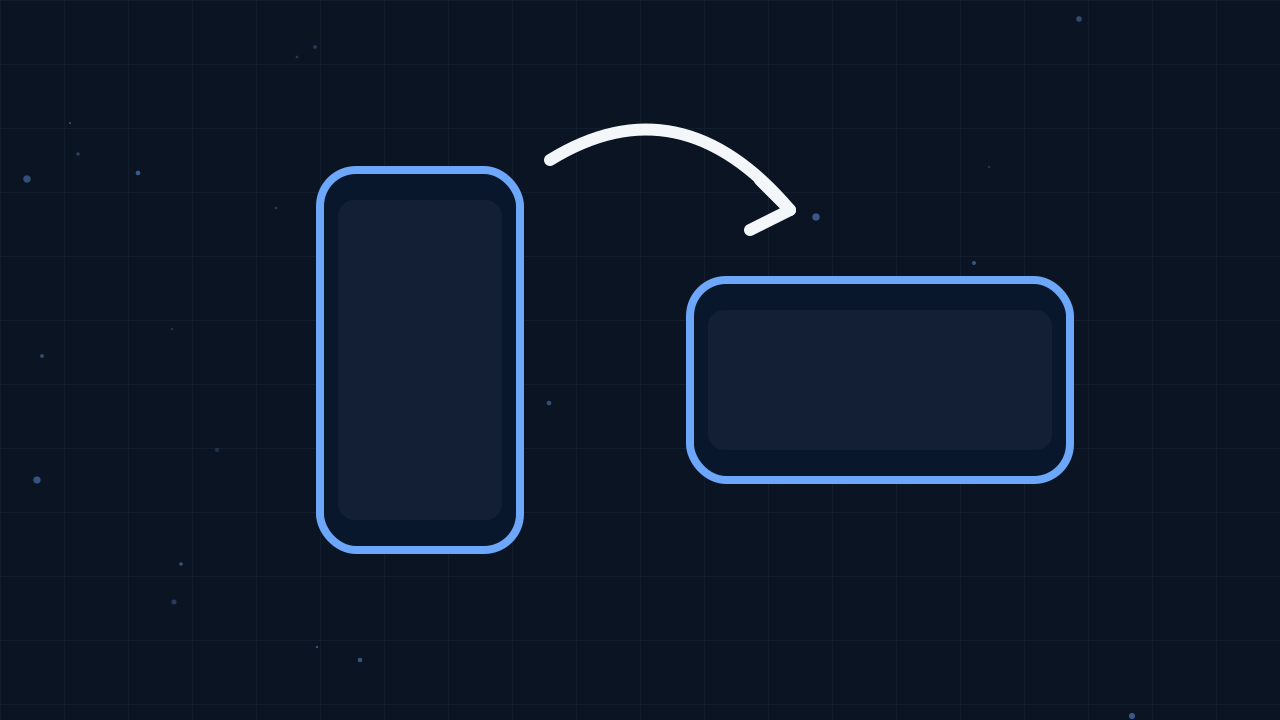
A screen held upright, taller than it is wide, is in portrait orientation. A screen turned on its side, wider than it is tall, is in landscape. Computer monitors and laptops are almost always landscape. Phones are usually held in portrait but can be turned, and tablets are comfortable either way.
Why games choose one shape
Game designers pick an orientation based on how the game is played.
- Landscape suits games where things move sideways or where you need to see far ahead horizontally. Racing games, side-scrolling platformers, many shooters and most sports games work best wide.
- Portrait suits games that move up and down or need only one hand. Stacking games, many puzzle games, vertical shooters, jumping games and one-tap arcade games are often designed tall.
Some games adapt to either shape, rearranging their buttons and layout automatically. Others are fixed and will simply add empty space around themselves if the screen does not match.
How to tell which shape a game prefers
The thumbnail picture on a game card gives a clue, but the most reliable way is to start the game and look. If you see wide bands of empty space on either side, the game probably prefers the other orientation. On a phone, simply rotate the device and see whether the game fills more of the screen. Make sure your phone's rotation lock is turned off, or the picture will stay put.
The full screen button
Even when the orientation is right, the browser itself takes up space with its address bar, tabs and other controls. The full screen button on each game page gives the entire display to the game. That has several benefits:
- The game appears larger, which makes small details easier to see.
- On touch screens, it stops the page from scrolling if your finger slips outside the game area.
- Distractions disappear, which helps you concentrate.
On a computer, press the Escape key to leave full screen. On phones and tablets, use your device's usual back gesture or the exit option provided by the browser.
Getting the most from a laptop or desktop
Computer screens are wide, so landscape games look great immediately. Portrait games will appear as a tall column in the middle, which is perfectly playable. If a portrait game feels small, full screen helps, and so does zooming your browser in slightly. Avoid zooming too far, as this can sometimes cause parts of the page to shift.
Getting the most from a phone
Phones offer the biggest gains from choosing the right orientation:
- Turn your phone sideways for racing, platform and action games.
- Keep it upright for stacking, sorting and tapping games.
- Use full screen for any game with on-screen buttons near the edges.
- Hold the device with both hands in landscape so your thumbs rest naturally on the controls.
For more advice on holding your phone and using virtual joysticks, see our guide to touch controls on phones and tablets.
Getting the most from a tablet
Tablets are wonderfully flexible. Their larger screen means even portrait games look generous, and landscape games feel almost like playing on a laptop. Resting a tablet on a stand or table can make long sessions more comfortable, especially for puzzle and strategy games that need careful tapping.
When the game seems cut off
If part of a game appears to be hidden, try these steps in order:
- Rotate your device to the other orientation.
- Press the full screen button.
- Reset your browser zoom to its normal level.
- Refresh the page so the game can measure the screen again.
Games check the size of the screen when they start. If you rotate your device during loading, a quick refresh lets the game lay itself out correctly.
A word about comfort
Whatever orientation you use, comfort matters. Holding a phone sideways with your arms raised for a long time can be tiring. Rest your elbows on a table or a cushion, keep the screen at a comfortable distance and take regular short breaks. Our article on healthy gaming habits has more ideas for staying comfortable.
Quick summary
- Wide games, such as racers and platformers, prefer landscape.
- Tall games, such as stackers and many puzzles, prefer portrait.
- Rotate your phone if you see big empty bands beside the game.
- Use full screen for a bigger view and fewer accidental scrolls.
- Refresh after rotating if the layout looks wrong.
A few seconds spent matching your screen to the game pays off with clearer visuals and more comfortable controls. Try it with your next game from the game library and notice the difference.