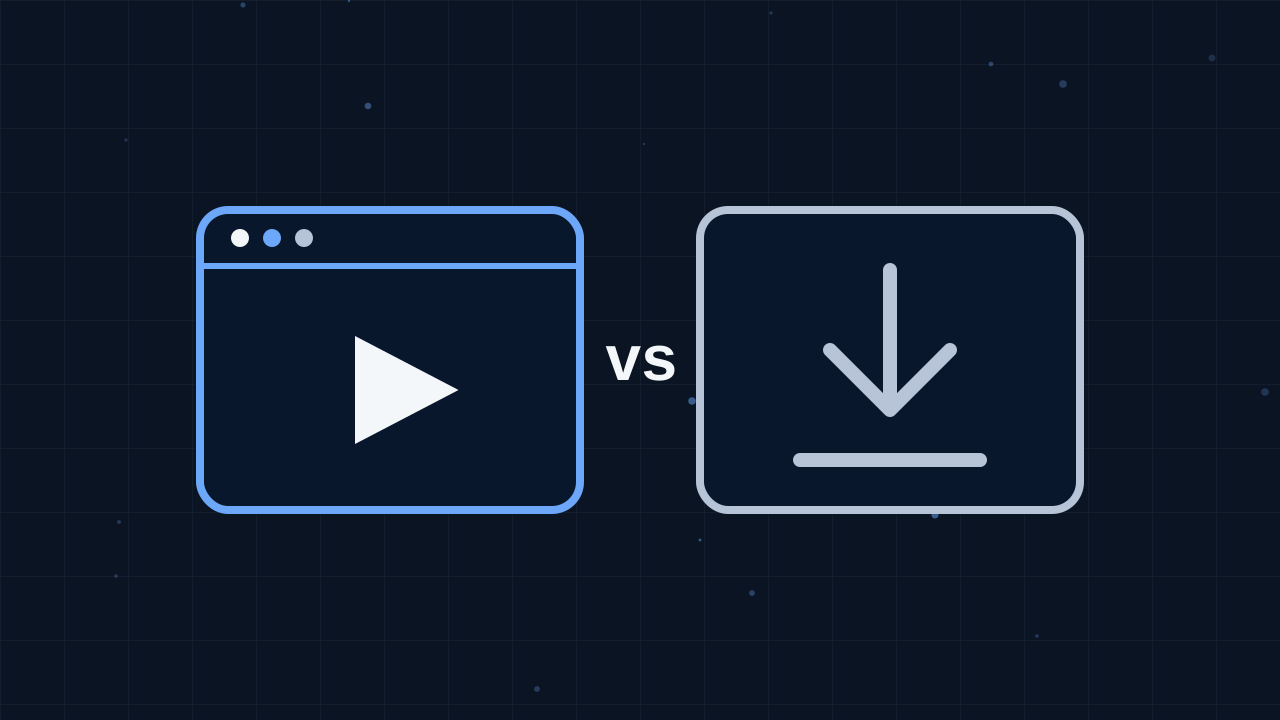
Browser games are one of the easiest ways to have fun on a computer, tablet or phone. There is nothing to download, nothing to install and no account required before you start. You open a page, press play and the game runs right there in your web browser. If you have never tried one before, this guide explains everything you need to know, from choosing a game to understanding the controls and getting better with practice.
What exactly is a browser game?
A browser game is a game that runs inside the same program you use to read websites. Modern browsers can display graphics, play sound and respond to your mouse, keyboard or touch screen quickly enough to run surprisingly rich games. Some are simple puzzles that take a minute to learn, while others are full 3D adventures with dozens of levels. Because the game lives on a web page, it works on almost any device with an up-to-date browser and an internet connection.
Step one: find a game that suits your mood
The best way to start is to think about what kind of experience you want right now. If you want something calm, a puzzle or a sorting game is a good choice. If you want excitement, try a racing or action game. If you only have a few minutes, arcade and casual games are built for short sessions.
On our site you can browse the full library on the All Games page, explore themed collections on the Categories page or use the search box if you already know the name of a game. Each game shows a thumbnail picture, which gives you a quick sense of its style before you click.
Step two: read the game page
Every game has its own page, and it is worth spending a few seconds reading it before you press play. You will find three useful sections:
- How to Play explains the goal of the game and how a typical round works.
- Controls lists the keys, buttons or gestures the game uses, so you are not left guessing.
- Tips gives three practical suggestions that help you avoid common early mistakes.
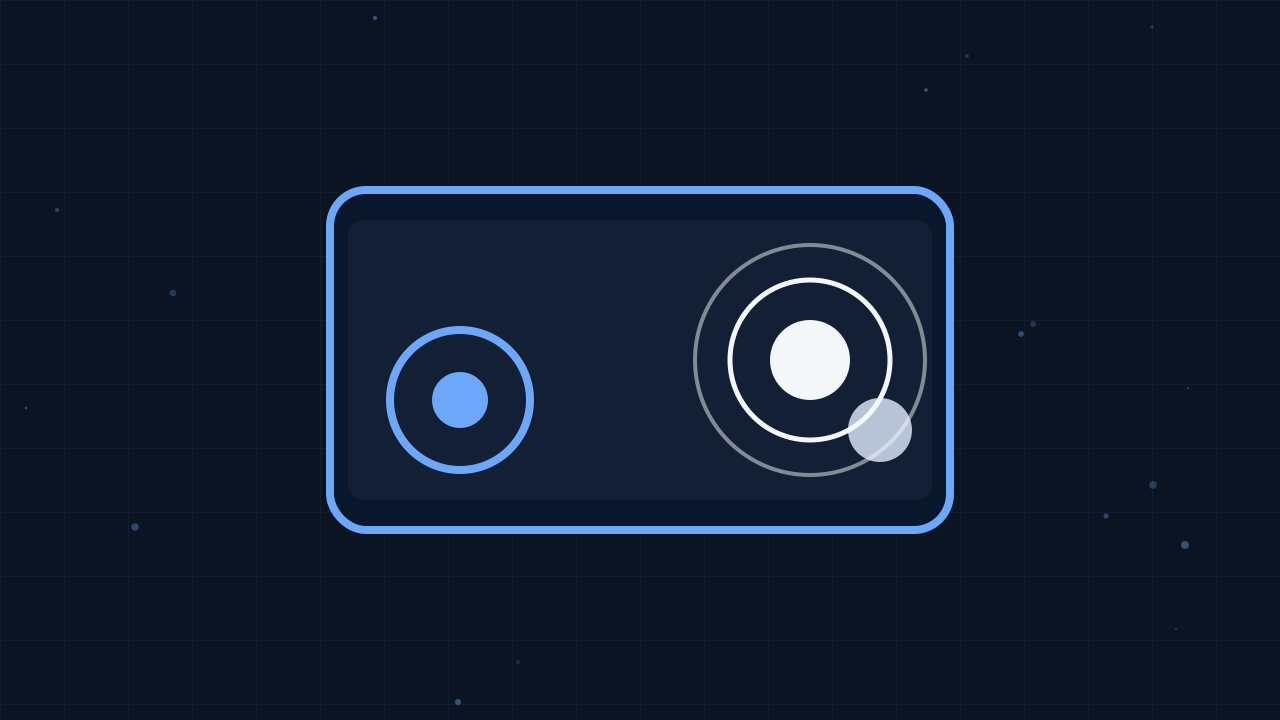
Reading the controls first is especially helpful. Some games use only a mouse click or a tap, while others use the arrow keys, several letter keys or a virtual joystick on touch screens. Knowing this in advance means your first attempt will go much more smoothly.
Step three: start the game
Press the play button and the game loads inside the page. Larger games may take a few seconds, especially on a slower connection, and you will often see a loading bar or a title screen. Once it appears, the game usually shows its own start button. Click or tap it, and you are playing.
If the game does not seem to respond to your keyboard, click once inside the game area. Browsers send key presses to whatever part of the page is active, and a single click makes sure the game is listening. This one small trick solves the most common problem new players run into.
Step four: use full screen when it helps
Many games look and feel better when they fill your screen. The full screen button on the game page enlarges the game and hides distractions. Press the Escape key on a computer, or use your device's normal back gesture, to leave full screen again. On phones, rotating the device can also give a game more room, particularly racing and platform games that are designed for a wide screen.
Step five: learn by playing
Nobody masters a game on the first attempt, and that is part of the fun. Treat your first few rounds as practice. Watch what happens when you press each control, notice which obstacles catch you out and try a slightly different approach next time. Most browser games restart quickly, so a mistake costs only a moment.
A few general habits help in almost every genre:
- Look ahead. In fast games, focus on what is coming rather than on your character.
- Start slowly. In puzzles, take a moment to study the board before your first move.
- Use the tips. The suggestions on each game page are there to save you time.
- Take breaks. If you are stuck, stepping away for a minute often brings a fresh idea.
Saving your favorites
When you find a game you enjoy, mark it as a favorite with the heart button on its page. Without an account, your favorites and recently played games are remembered in your browser on that device. If you create a free account, they are saved to your profile instead, so they follow you to any device you sign in on.
What about game progress?
Many games save your progress automatically, so you can come back to the level you reached. This progress is usually stored by the game itself in your browser. That means clearing your browser data or switching to a different device may reset it. Our article on how browser games save progress explains this in more detail.
Solving common problems
Most games work instantly, but if something goes wrong, these quick checks usually fix it:
- If the game is stuck on a loading screen, refresh the page and try again.
- If the keyboard does nothing, click inside the game area once.
- If the game feels slow, close other tabs and programs you are not using.
- If a game still does not work, use the Report button on its page so we can check it.
For more ideas, read our guide to making browser games run smoothly.
Ready to play
That is really all there is to it. Pick a game, read the short guide, press play and enjoy yourself. Browser games are designed to be welcoming, so do not worry about making mistakes. Explore different categories, try something you would not normally choose and keep a list of favorites. Before long you will have a collection of go-to games for every mood, from a quick puzzle on a coffee break to a longer racing session in the evening.